MOV video not playing in your browser? A frame-extraction checklist
A MOV filename does not tell you whether the video inside can play in your browser. If the preview is blank, loading fails, or only audio plays, check the codec and export a short compatible copy before extracting frames. Renaming the file from .mov to .mp4 does not convert its contents.
Separate the container from the codec
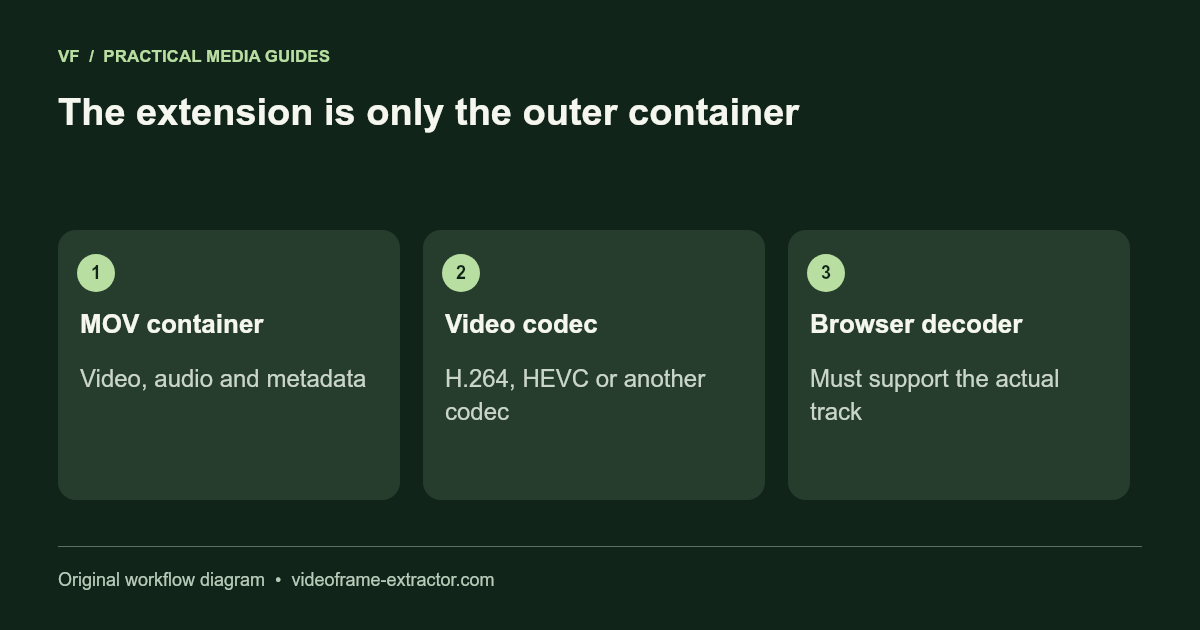
MOV is a media container: it holds video, audio, and metadata. The video track may use H.264, HEVC, a camera editing codec, or another encoding. The same extension can therefore work for one recording and fail for another. Playback also depends on the browser, operating system, and installed decoding support.
This extractor uses the browser’s video decoder. It does not secretly transcode every unsupported source. A file-size check can pass while decoding still fails. Read the error as a compatibility issue rather than proof that the file is damaged. Test the original in a trusted local player to determine whether the recording itself opens.
Run four checks before converting
- Confirm the file is a complete local download rather than an online-only placeholder.
- Play it in your desktop editor or player and inspect both picture and sound.
- Check its codec and dimensions in that application’s media information.
- Try a short copy in a current desktop browser with the site sample as a control.
If the sample works but your recording does not, that points toward the particular file or decoding path. If neither works, check browser errors, disabled JavaScript, and blocked local execution. Keep the original file while testing; do not overwrite your only recording.
Export a compatible working copy
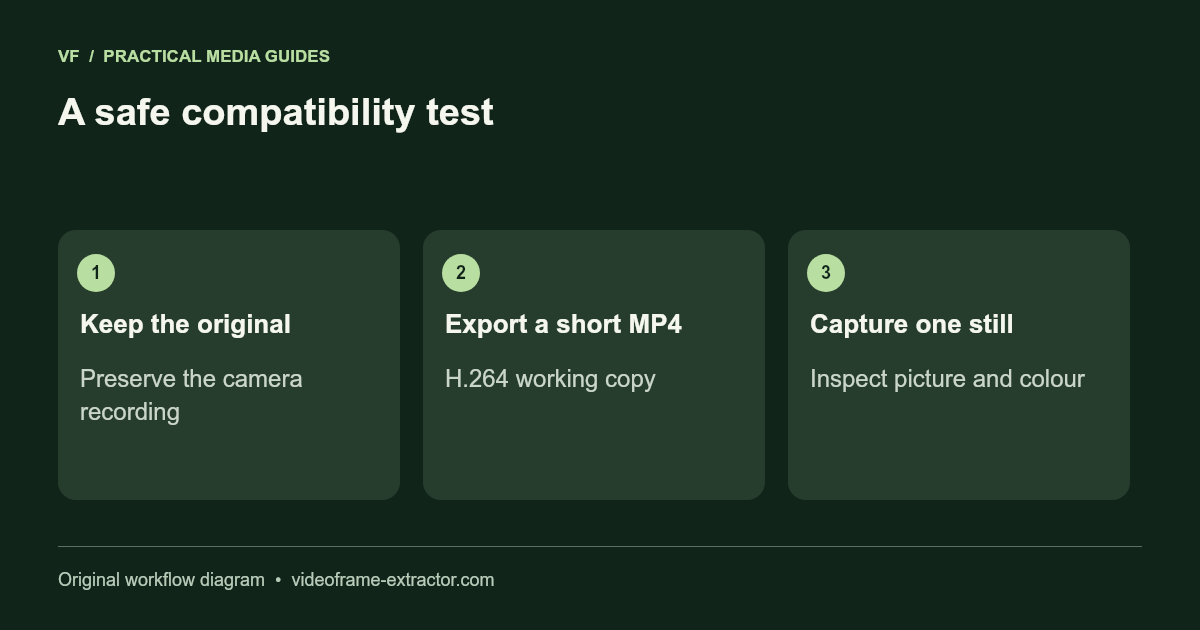
In a local editor, export a small H.264 MP4 at the source frame size when possible. Standard SDR footage is a simpler compatibility test than a specialised HDR or high-bit-depth camera file. Open the copy in the browser, confirm the picture, and capture one frame before exporting the entire recording.
A transcode changes the compressed video and may change colour, detail, timing, or metadata. It is a working copy for this task, not a lossless preservation strategy. If you need original camera pixels or a managed HDR workflow, use a desktop application designed for that source and compare its still export with the original.
Distinguish black pixels from a failed preview
Scrub to a known visible part of the recording. Some clips begin with black frames or a fade. If the exported picture contains bars that are also present in the source, those bars are part of the picture and will be saved. A tall gallery card with a small landscape picture is a display problem, which is different from a black source frame.
Check the downloaded image in a separate viewer. If it has the expected dimensions and visible content, the capture worked even if a preview layout needs attention. This release uses a bounded gallery preview while keeping the saved frame at native dimensions.
Respect pixel and device limits
The frame extractor accepts videos up to 2 GB with decoded frames up to 3840 × 2160 pixels. Those are safety limits, not a promise that a phone can comfortably handle a two-gigabyte file. Close unnecessary tabs and test a shorter copy if seeking is slow. The gallery also stops at 120 pictures or 96 MB of retained image data.
When reporting a problem, include the browser, operating system, source codec, dimensions, and the visible error. Do not send private footage through the contact form. A reproducible description helps separate a compatibility limitation from an actual bug.
Try this workflow
Start with a short, non-sensitive sample. Inspect the downloaded result before using a longer recording or larger image.
Open the related toolTechnical reference: Media containers and codecs (MDN). Tool-specific settings above describe this release.