How to extract a video frame at a specific timestamp
Load a local video, pause near the requested time, and capture the decoded picture. You can refine the playhead and compare nearby moments. A browser timestamp is useful for navigating a recording, but this tool does not certify that the saved picture is an exact source frame index or an evidentiary timecode.
Write the request in seconds
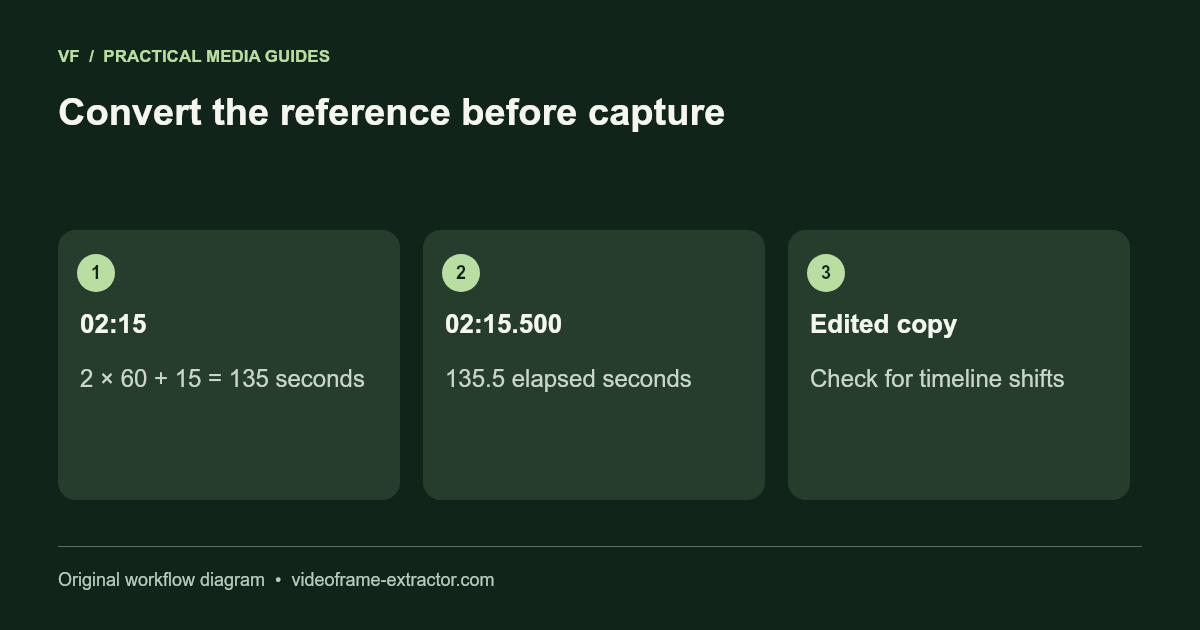
Convert a minute-and-second reference into elapsed seconds before setting a batch range. For example, 02:15 is 135 seconds. Add the fractional part if your reference includes milliseconds: 02:15.500 becomes 135.5 seconds. Keep the original reference alongside the exported still so the conversion can be checked.
Make sure the reference belongs to this exact file. A trimmed copy, an inserted title card, or an edited intro can shift all later positions. Two videos with the same visible scene are not necessarily synchronized. If a timestamp comes from a streaming version, locate the scene in your local file before trusting the number.
Find the scene, then refine the moment
- Select the original local recording and verify the preview.
- Move the timeline close to the requested scene and pause.
- Use the time-step controls to compare earlier and later positions.
- Capture a candidate and check the subject, text, or action that matters.
- Save a small set of nearby candidates when the event is brief.
The time-step controls request a change in elapsed time. They do not know or enumerate every source frame. A move of 0.03 seconds should not be described as exactly one frame unless a separate frame-aware workflow has established that relationship for the source.
Understand why seeking can be approximate
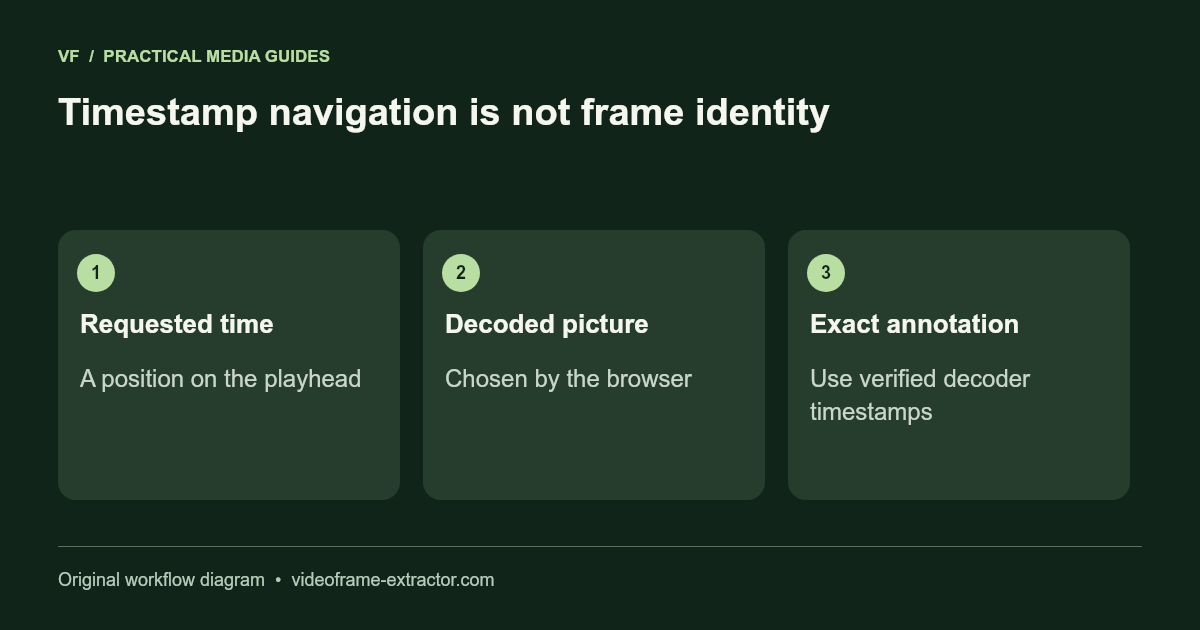
Compressed video may need nearby reference pictures to decode a requested moment. Variable-frame-rate recordings also have uneven presentation times. The browser chooses a decoded picture for playback at the requested time; its behavior can vary by file and platform. Capturing that picture is different from extracting an indexed frame through a decoder pipeline.
For frame-accurate annotation, synchronizing measurements, or a legal record, use a desktop workflow that exposes decoded presentation timestamps and preserves the source. This website is convenient for ordinary still selection. It is not presented as a forensic frame extractor.
Keep a record that survives download
The generated image filenames include a capture time and sequence number. Preserve them when organizing a set, but remember the time is based on the player position. Keep a short note recording the original filename, requested time, browser, and the reason the frame was chosen.
If you crop, brighten, or upscale the picture later, save that as a separate derivative. An enhanced image can be useful for presentation, but it should not be substituted for the original capture when readers need to assess what the video actually showed.
Troubleshoot a wrong-looking result
If a saved still appears to show the previous scene, compare the paused preview, seek again, and capture a new candidate. If many positions return the same content, verify the recording is not static or frozen there. Try the public sample to distinguish a file-specific issue from a browser problem.
If the file does not decode, changing the timestamp cannot fix it. Create a compatible H.264 MP4 working copy or use a source-capable editor. Check a short result first. Keep originals and avoid promising precise frame identity from an approximate browser capture.
Try this workflow
Start with a short, non-sensitive sample. Inspect the downloaded result before using a longer recording or larger image.
Open the related tool