Extract Video Frames for a Canvas Scroll Animation
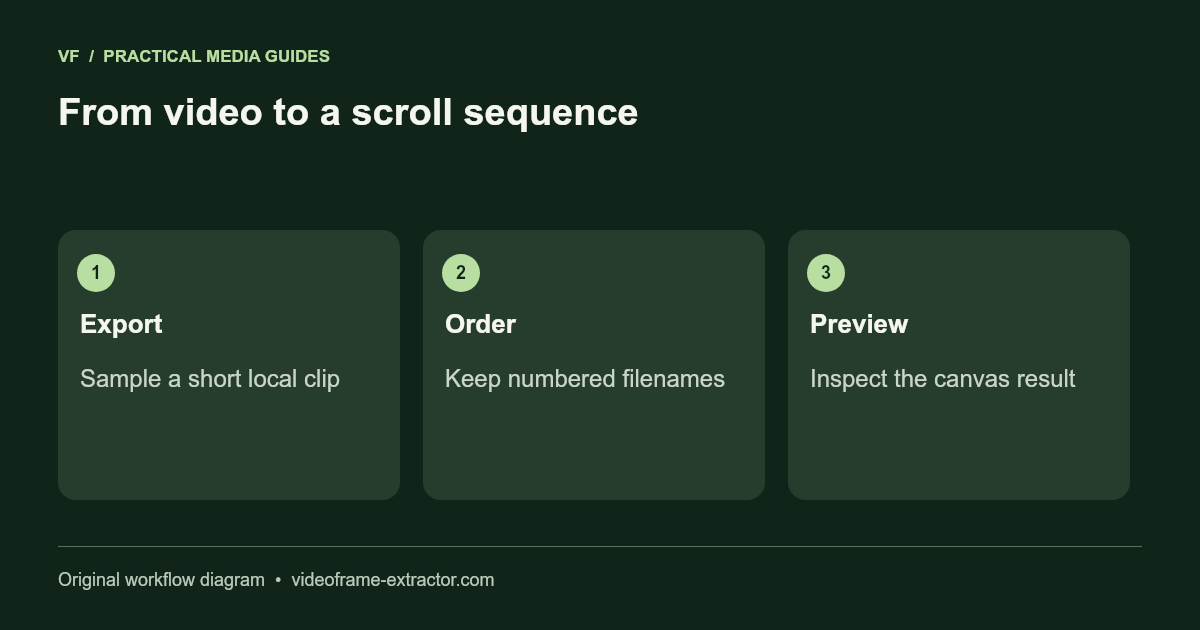
To turn a video into a canvas scroll animation, export a short sequence of still images, order the filenames, and map scroll progress to an image index. An AI-generated video follows the same process as a camera recording: save a compatible local video first. This guide includes a working preview and a downloadable HTML example using your frames.
Try the image-sequence workspace
Choose 2–60 PNG, JPG or WebP images, up to 24 MB total and 16 megapixels per image. Files stay in this browser. Filenames sort numerically: frame_2 comes before frame_10. Preview frames are resized to fit 640 × 360 without cropping. Original extracted files remain unchanged. The downloaded example embeds these smaller preview images, so it is a prototype rather than a full-resolution export.
Choose images or try the generated sample.
No frames loaded.
Scroll inside the box below after enabling it. The slider also works with a keyboard. Reduced-motion settings disable the scroll effect.
Export a short sequence first
Open the video-to-JPG sequence converter, load a video you own, and choose a start, end and interval. Begin with a five-second section and a 0.1-second interval: this requests 50 pictures because the end is excluded. Download the ZIP, extract it on your device, then select the resulting images above. This workspace accepts images, not ZIP archives or video URLs.
More frames mean more download bytes and decoded image memory. A 60-frame sequence is often enough to test an idea, but smoothness also depends on how much the subject moves between pictures. A fast pan needs closer samples than a slow product rotation. A sampled browser export is not guaranteed to hit exact source-frame numbers. Check the first, middle and last images before building a landing page around the sequence.
Map scroll progress to the frame index
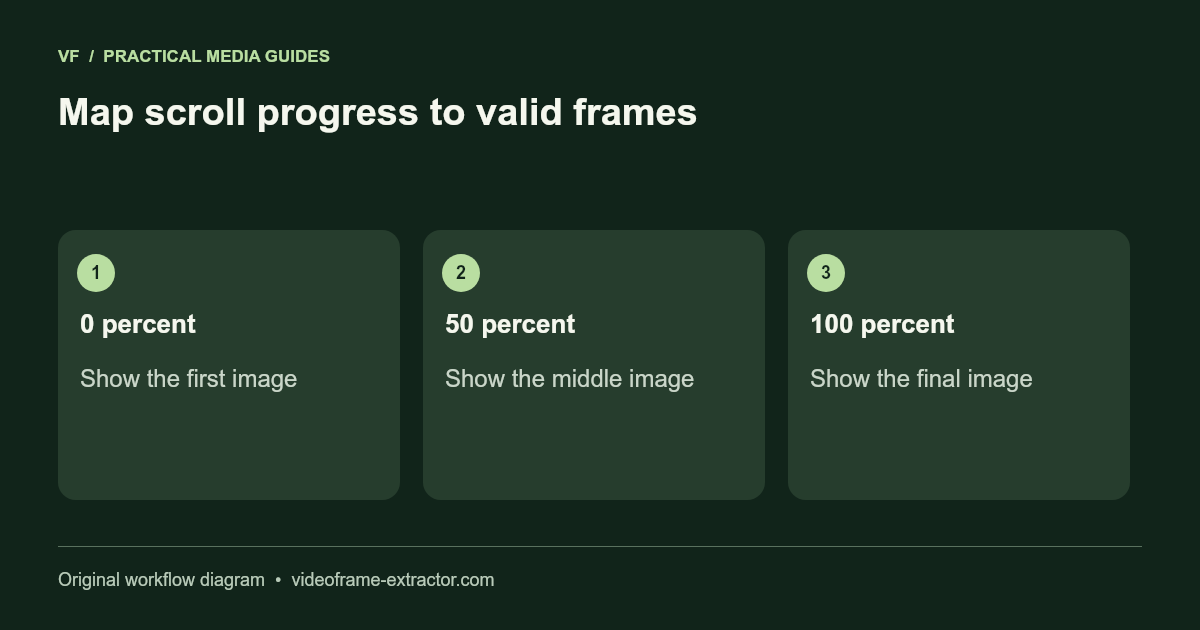
For a scrollable element, divide scrollTop by scrollHeight minus clientHeight. Clamp the result between zero and one. Multiply it by the number of frames minus one, then round to the nearest integer. With 50 frames, the first index is 0 and the last is 49. This prevents a missing image at the end of the scroll range.
const range = track.scrollHeight - track.clientHeight;
const progress = range > 0 ? track.scrollTop / range : 0;
const index = Math.round(Math.max(0, Math.min(1, progress)) * (frames.length - 1));
The preview draws at most once per animation frame and waits for images to decode before enabling controls. The downloadable example includes the same ordered images and a keyboard slider. Open it locally to test it, then review its code before integrating it into your website. It does not require an external image host or a JavaScript library.
Keep motion optional and performance predictable
Scroll animations should support the page’s message. Keep ordinary text and links available, provide a still image when JavaScript is unavailable, and give visitors a way to avoid motion. This example starts with scrolling disabled and respects the browser’s reduced-motion preference. A slider remains available to inspect individual pictures.
For production, size images for the actual display, test on a real phone, and measure loading and memory use. A canvas bitmap alone does not supply meaningful text to search engines or screen readers: write the explanation in HTML beside it. Avoid hiding essential information inside the moving scene. If the preview looks letterboxed, the image proportions differ from the preview canvas; the saved source image is not cropped.
Troubleshooting the sequence
A jumping scene usually means images are out of order, intervals are too wide, or a duplicate was exported. Use consistent, numbered filenames and compare neighboring frames. An unsupported or damaged image is rejected with a message; the workspace clears incomplete results instead of offering a broken download. If the browser slows down, try fewer frames or resize the source images before loading them.
For an AI-generated clip, first check usage rights and export a local MP4 your browser can play. This tool does not generate AI video, remove watermarks or repair invented details. For an inaccessible codec, convert the recording in an editor before using the custom-interval extractor.
Implementation references: MDN canvas images and requestAnimationFrame. See the tool limits for the broader media workflow.