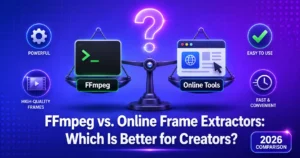
Historically, technical creators relied heavily on FFmpeg, the open-source command-line framework that handles raw video streams. Meanwhile, non-technical creators used slow cloud converter sites. However, with modern browser APIs like WebAssembly and HTML5 Canvas, client-side tools have changed the game completely. When comparing an FFmpeg vs online frame extractor workflow, understanding performance, privacy, frame accuracy, and ease of use will help you choose the best tool for your production needs.
This comprehensive breakdown evaluates how terminal commands compare against client-side browser tools, helping USA and global creators maximize visual quality while protecting unreleased media assets.
Try the Best No-Upload Tool Now – 100% Free
What Is FFmpeg? The Command-Line Powerhouse
FFmpeg is a free, cross-platform command-line library designed for processing, decoding, encoding, transcoding, and filtering video files. Because it interacts directly with system hardware via shell scripts or terminal commands, it offers granular control over media streams.
How Frame Extraction Works in FFmpeg
To extract stills with FFmpeg, you open a terminal window and execute precise code flags. Here are three standard syntax examples used by technical editors:
1. Extracting a single frame at an exact timestamp:
ffmpeg -ss 00:01:23.000 -i input.mp4 -frames:v 1 output.png2. Extracting 1 frame per second across an entire clip:
ffmpeg -i input.mp4 -vf "fps=1" frame%04d.png3. Extracting every single frame sequentially:
ffmpeg -i input.mp4 -vsync passthrough frame_%06d.pngPros of Using FFmpeg
- Unmatched Scripting Power: Can be integrated into Python scripts or Bash automation to process thousands of files in bulk.
- Lossless Exporting: Direct stream decoding ensures zero quality degradation when saving uncompressed PNG files.
- Local Execution: Runs 100% locally on your machine without remote server uploads.
Cons of Using FFmpeg
- Steep Learning Curve: Requires memorizing terminal flags and command structure.
- No Visual Interface: You cannot visually preview the exact frame before exporting, making timestamps a trial-and-error guessing game.
- Keyframe Seeking Errors: Fast input seeking can easily land on an adjacent frame depending on keyframe (GOP) placement.
What Is a Client-Side Online Frame Extractor?
Legacy cloud convert websites force users to upload heavy 4K video files to remote servers, causing upload delays, bandwidth limits, and serious data privacy risks. Modern client-side tools like Video Frame Extractor operate directly inside your web browser. Utilizing HTML5 video rendering and GPU acceleration, your video stays locally on your device while extracting full-resolution stills instantly.
Pros of Client-Side Online Extractors
- Visual Timeline Scrubbing: Easily preview footage frame-by-frame to pick the exact expression or visual moment.
- 100% Private & Secure: Processing occurs within browser memory. Unreleased footage never uploads to external servers.
- Zero Installation: Works immediately on desktop browsers, tablets, and smartphones without software setup.
- AI Sharpness Detection: Automatically highlights clear frames, helping creators avoid motion blur. For a deep dive into fixing blurry captures, read our guide on how to fix blurry frames when extracting from video.
Cons of Client-Side Online Extractors
- Browser Codec Constraints: Relies on your browser’s native decoding support (proprietary formats like raw ProRes may require specialized software).
- Hardware Dependent: Extracting frames from 8K clips requires sufficient system RAM and GPU resources.
Head-to-Head Comparison: FFmpeg vs Online Frame Extractor
Evaluating an FFmpeg vs online frame extractor approach across five critical workflow metrics demonstrates where each tool excels:
1. Speed to First Frame
When you need a single frame for a thumbnail right away, launching a terminal, navigating directories, typing command flags, and opening output folders takes several minutes. Dragging a file into a client-side browser tool lets you scrub and export in under ten seconds. Winner: Online Frame Extractor
2. Visual Selection & Precision
In FFmpeg, seeking to an exact millisecond requires knowing the precise timestamp beforehand. If your source video uses Variable Frame Rates (VFR), FFmpeg can land on adjacent frames. A visual client-side interface lets you inspect facial expressions and motion frame-by-frame before exporting. Winner: Online Frame Extractor
3. Batch Processing & Automation
If you need to extract thousands of frames across 100 video files for machine learning or archiving, manual browser clicking is impractical. FFmpeg excels at scripted automated loops across massive directory structures. Winner: FFmpeg
4. File Privacy & Data Security
Both FFmpeg and browser-native client-side tools execute operations locally on your hardware. Neither requires uploading private video files to cloud servers. Winner: Tie (Both beat legacy cloud converters)
5. Output Quality & Resolution Preservation
Both extraction methods pull uncompressed frames directly from decoded media streams, providing exact 1:1 original resolution copies when exported as PNG. Winner: Tie
Feature Comparison Breakdown
Here is how command-line terminal scripts stack up against modern browser tools and legacy converters:
| Feature / Requirement | FFmpeg (Terminal) | Client-Side Online Extractor | Legacy Cloud Converters |
|---|---|---|---|
| Interface Type | Command Line / Terminal | Visual Interactive Player | Form Upload Page |
| Installation Required | Binary install & PATH setup | None (Instant in browser) | None |
| File Privacy | 100% Local (Safe) | 100% Local (Safe) | Low (Uploaded to cloud) |
| Visual Frame Preview | No (Trial & Error) | Yes (Frame-by-frame) | Limited thumbnail preview |
| Batch Scripting | Automated & Powerful | Manual / Semi-automated | Capped / Limited |
Step-by-Step: How to Extract Sharp Stills Without Terminal Commands
To get high-resolution video stills without writing code, follow this quick workflow:
- Open the Tool: Head to videoframe-extractor.com in your preferred browser.
- Load Your Video: Drag and drop your file into the window. It loads instantly because processing remains local.
- Scrub to the Frame: Use the timeline control to find the exact emotion or scene change.
- Enable AI Sharpness: Let built-in focus detection snap to the clearest frame in motion sequences.
- Download PNG: Export your uncompressed frame directly to your desktop or phone camera roll.
Pro Tips for USA Content Creators in 2026
- YouTube Thumbnail Sizing: Ensure your extracted horizontal frames conform to official specs. Review our guide on optimizing your YouTube thumbnail size in 2026.
- Short-Form Mobile Covers: When producing vertical clips, extract 9:16 aspect ratio covers using strategies from our post on frame extraction for Instagram Reels and TikTok covers.
- Compare Alternative Web Tools: To explore other browser solutions on the market, check out our roundup of the best free video frame extractor online tools.
Real Example: How a US Video Editor Cut Production Time
A freelance video editor in Los Angeles managed thumbnail creation for three high-volume YouTube channels. Previously, he opened terminal instances, calculated timestamps, and ran FFmpeg commands for every video export. Switch-backs between terminal windows and image viewers added 15 minutes of delay per video.
After transitioning to a client-side browser extractor, he loaded master files locally, scrubbed visually to expressive facial expressions, and downloaded sharp 4K PNGs in seconds. The visual workflow saved over 5 hours of production time weekly while maintaining strict client privacy agreements.
Frequently Asked Questions (FAQ)
Is FFmpeg better than an online frame extractor?
FFmpeg is superior for automated, server-side batch scripting across massive video libraries. Online client-side frame extractors are better for quick, visual single-frame selection, instant previewing, and thumbnail creation without code.
Are online frame extractors safe for confidential footage?
Client-side extractors process files entirely in your browser memory via WebAssembly and HTML5. Your raw video never uploads to remote servers, making it 100% safe for confidential media.
Does extracting frames with FFmpeg lose quality?
Exporting to PNG via FFmpeg preserves 100% of decoded frame quality. Quality loss only occurs if you export to compressed JPG formats without specifying low compression quality flags.
Can browser-based extractors handle 4K videos?
Yes. Modern desktop browsers utilize local GPU hardware acceleration, allowing seamless 4K video playback and full 3840×2160 PNG frame extraction.
Conclusion
Evaluating an FFmpeg vs online frame extractor approach comes down to your primary task. If you are building automated backend video pipelines, FFmpeg remains the gold standard developer tool.
However, for day-to-day content creation, thumbnail design, and visual asset extraction, client-side browser extractors deliver the perfect combination of visual precision, instant rendering, and complete data privacy.
Stop struggling with command syntax or slow cloud uploads. Try Video Frame Extractor today to pull crisp 4K stills from your video clips in seconds.