Inspect the source before changing export settings
If an object is streaked or out of focus in the paused original, exporting PNG will not restore missing detail. Motion during the camera exposure, missed focus, and compression can all make a still softer than the moving video appears.
Look for a quieter moment
Pause near the moment you want, then compare earlier and later timestamps. A face can become clearer when the speaker briefly stops moving. A useful expression is more important than the largest numerical sharpness estimate. The time-step controls change the requested time; they do not know the source’s exact frame rate.
Check dimensions and output format
- Compare the resolution shown by the player with the intended image size. Enlarging a small still does not add detail.
- Use PNG when editing a master image and avoiding an additional lossy image encode matters.
- Use high-quality JPG for a smaller file. Inspect fine text and edges after export.
- Compare images at the same display size. A small preview can hide blur.
Use the estimate as a hint
The tool measures Laplacian variance on a downscaled sample of the whole frame and converts it to a 0–100 estimate. Noise and detailed backgrounds can increase this value even when the face is soft. Compare frames from the same clip, then inspect the intended subject yourself.
Improve the next recording
More light, steady camera support, and deliberate focus can help. A faster shutter can reduce recorded motion blur but also changes the exposure and look of the moving video. Test settings for your scene rather than applying one shutter value to every recording.
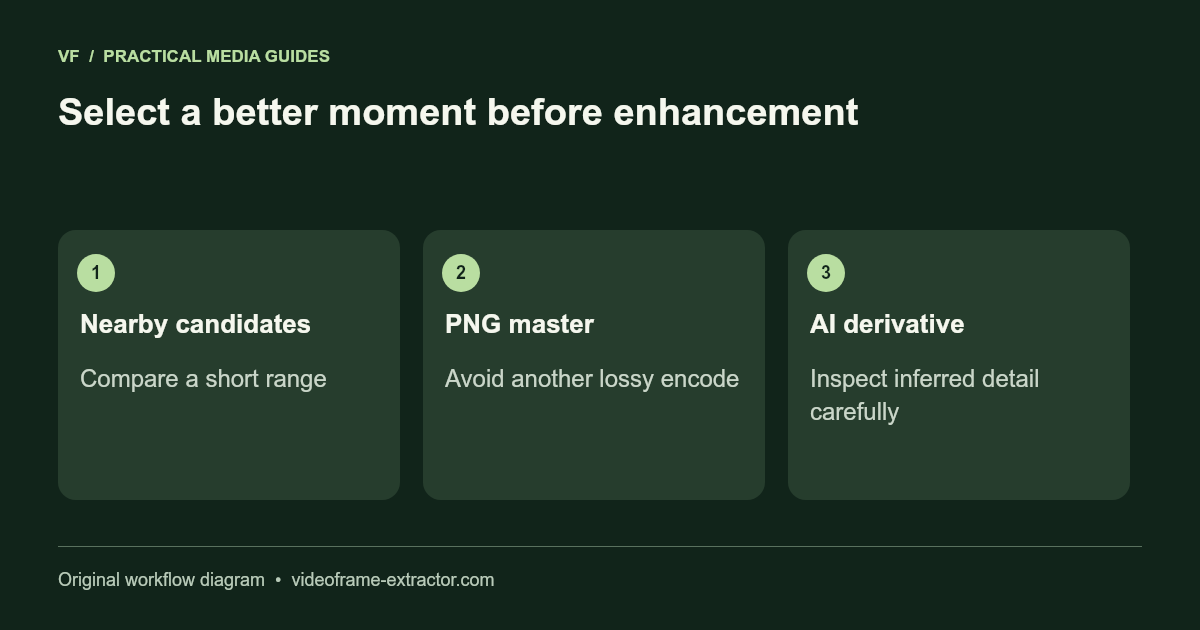
Try the frame extractor with a short range and keep a few candidates. Avoid promising a blur-free result: an extractor cannot recover detail that was never recorded.
A three-way comparison that identifies the cause
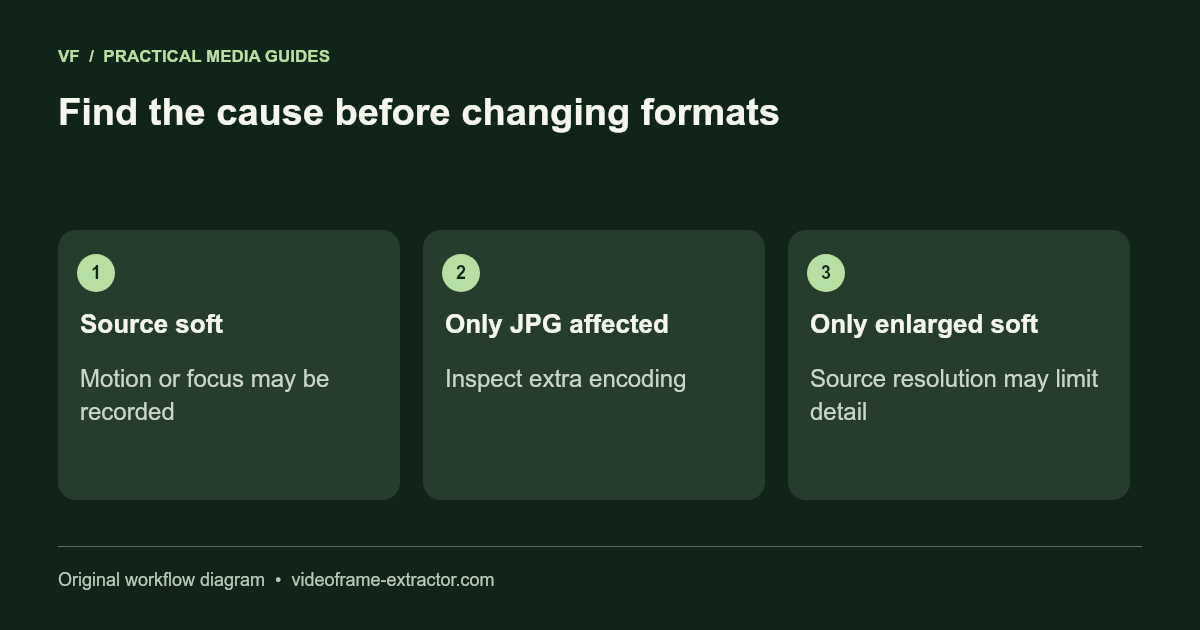
Compare the paused source, a PNG export, and a JPG export from the same moment at the same size. If the source and PNG both show a streaked hand, that is likely recorded motion or focus softness. If only the JPG shows blocks around text, its additional image encoding may be contributing. If all look clear until enlarged, the source resolution is the likely constraint.
Capture nearby moments instead of repeatedly applying enhancement to one weak frame. For example, inspect a short quarter-second sequence around a speaker’s pause and choose the clearest expression manually. The sharpness estimate is a comparison hint across the whole picture, not a face-specific blur detector or a guarantee of the best moment.
If you try the AI image upscaler, retain the original and compare tiny text, facial detail, and outlines carefully. An inferred crisp edge can change what the picture appears to show. Use an enhanced derivative for presentation only when it remains representative; do not treat invented detail as proof of what was recorded. For future footage, test lighting, focus, and camera stability before a long recording.
Open a compatible local file and capture a few moments for comparison.
Open frame extractor