How to upscale a transparent PNG without adding a white background
Choose a transparent PNG in the image upscaler and download the 2× PNG result. This version restores the enlarged source alpha mask after processing, so transparent areas can remain transparent. Check the result on both light and dark backgrounds; a checkerboard preview alone cannot reveal every edge problem.
Confirm that the source really has transparency
A picture of a checkerboard is not an alpha channel. Open the file in an editor and place a coloured layer behind it. If the background remains a fixed checkerboard or white rectangle, those pixels are part of the image. The upscaler does not remove a baked-in background.
For portrait cutouts, the separate background remover can estimate a mask for people. It is not a universal product or logo cutout service. For an existing transparent asset, use the original PNG rather than a screenshot that has already flattened it against a background.
Choose the enlargement method
Fast resize doubles width and height using browser image smoothing. It is a practical choice for large files and predictable dimensions. AI enhancement estimates new colour detail with an ESRGAN model. It can change textures and edges, so compare the result before using it in a brand asset or technical illustration.
Auto chooses AI for source images up to 0.5 megapixels and explicitly identified fast resizing for larger sources. You can choose AI manually for a larger admitted image, but tiled processing takes more time. The interface reports the actual method; a fast resize is not described as an AI restoration.
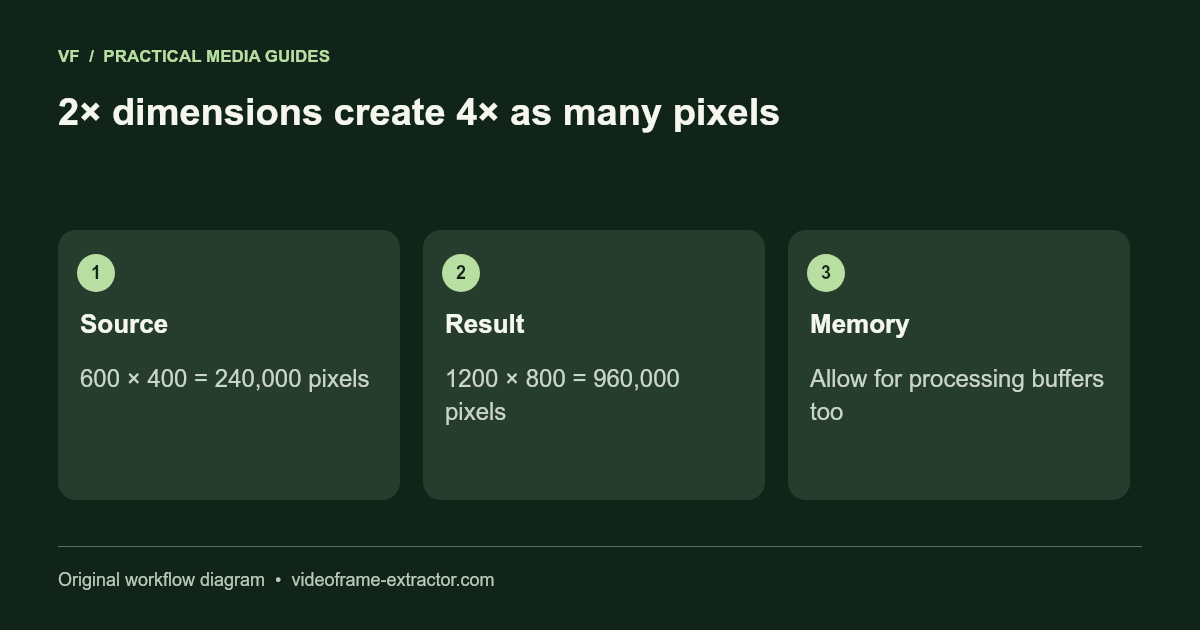
Calculate the output before starting
A 600 × 400 image becomes 1200 × 800. Doubling both sides makes four times as many pixels, not twice as many. The admitted source limits are 50 MB, 16 megapixels, and 8192 pixels on either side. Those limits protect the tool, while the practical performance still depends on your device.
A single 8000 × 8000 RGBA buffer needs roughly 244 MiB for pixel storage alone. Processing can require additional canvases, arrays, model memory, and encoded output. Do not interpret the source-file byte size as the complete memory requirement. Use a smaller test when working on a phone.
Inspect the alpha edges separately from detail
Place the enlarged PNG over a white background and then a very dark background. Look for pale fringes, dark halos, gaps in thin strokes, and partially transparent edge pixels. The restored alpha mask preserves the source’s transparency structure at the enlarged scale; it does not repair every flawed original cutout.
Zoom out to the actual display size too. An edge that looks odd at 400% may be invisible in use, while a thick halo can remain obvious at normal size. Keep the source file and save the enlarged output under a different name so you can compare them later.
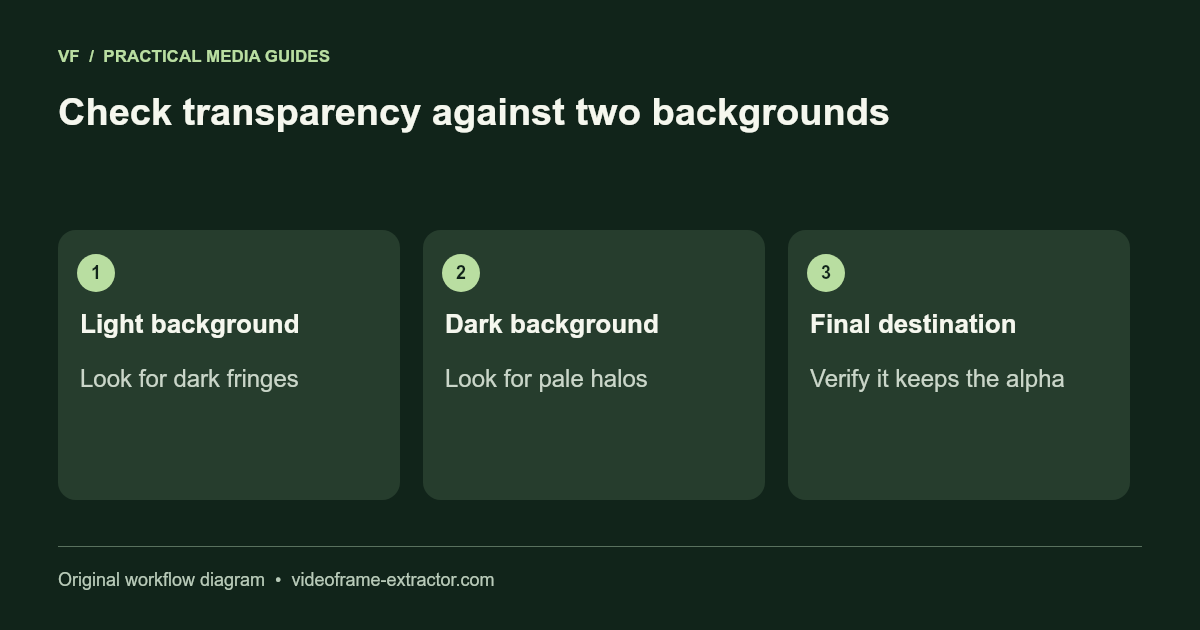
Check formats and downstream use
PNG is the downloadable format for this workflow because it supports alpha. JPG cannot retain transparency. Some destinations flatten a PNG onto their own background, so test the final placement rather than relying only on the local file. Animated inputs produce one still image here.
If your browser cannot decode a source such as HEIC, RAW, TIFF, or PSD, export PNG or JPG from a source-capable editor first. An invalid-file message should be resolved through decoding or conversion, not by simply renaming the extension. Use PNG when you need to preserve an existing transparent background.
Try this workflow
Start with a short, non-sensitive sample. Inspect the downloaded result before using a longer recording or larger image.
Open the related tool