Choose media export settings that fit your next step
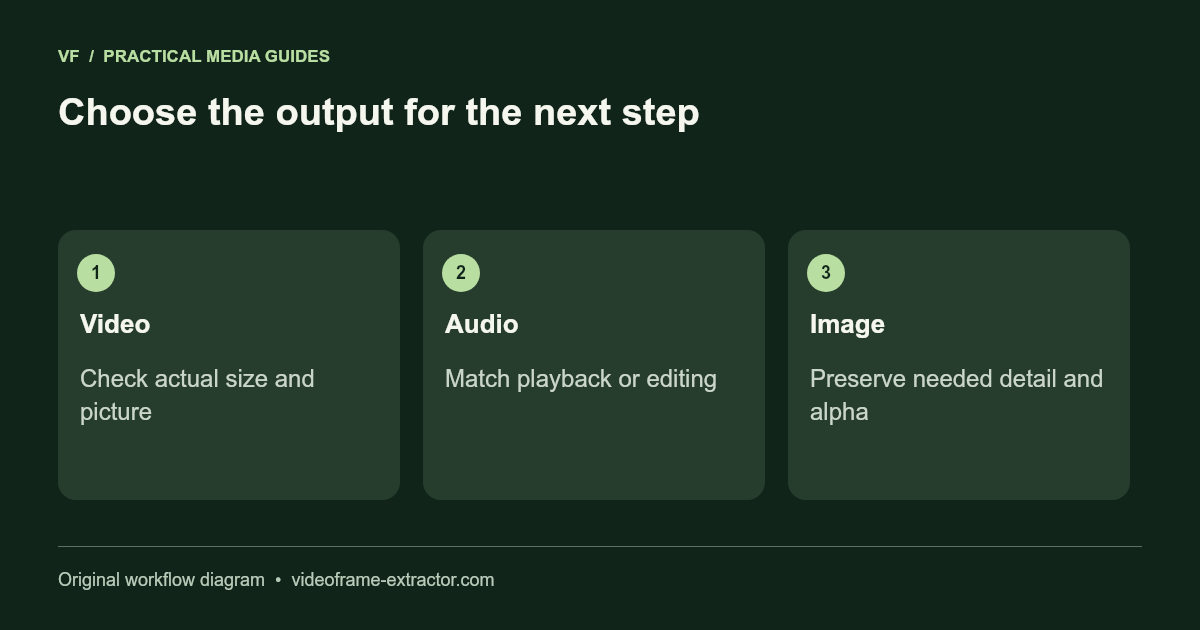
The best export setting depends on what you will do next. A smaller sharing file, an editing file, and an AI-enhanced image serve different purposes. Choose the output deliberately, and inspect it before replacing anything.
Smaller video means a trade-off
The video compressor re-encodes a selected range as H.264/AAC MP4. Start with a balanced CRF setting and an output width that suits the destination. A smaller width drops pixels. A stronger compression setting loses more detail. Neither option restores information missing from the source.
File size is not a quality score. In our small synthetic test, re-encoding an already efficient three-second clip made the output larger. That is a useful result to notice, not a reason to relabel the file as smaller. The interface reports the actual output size and its comparison with the full source. If you trimmed a range, the comparison also reflects the shorter duration.
Pick audio for playback or editing
Use Video to audio to keep the full soundtrack or a selected range. MP3 is a practical everyday playback format. M4A uses AAC and can suit common device workflows. OGG uses Vorbis. WAV exports uncompressed PCM audio for editing and can be much larger.
Choosing a higher bitrate cannot recreate detail already lost in the original track. Choose one reasonable setting, listen to a quiet section and a busy section, and compare before making another encode. Avoid repeatedly converting lossy files if the source is available.
Keep images true to the task
For video stills, PNG avoids an additional lossy image encode. JPG and WebP can be smaller, with another quality trade-off. A decoded frame still contains the source video's compression and blur. Native dimensions describe its pixel size, not guaranteed sharpness or colour accuracy.
The AI image upscaler estimates a 2× larger image. It can change edges and textures. Do not use inferred tiny text, faces, or numbers as evidence that the source contained those details. Compare the source and output at the same displayed size, and keep the source file.
Transparent PNG is a separate kind of output
The portrait background remover creates an alpha mask and exports RGBA PNG. Check the edges against a light and a dark background. Fine hair, accessories, and similar subject/background colours can expose errors. The model is tuned for people; it is not presented as a product or pet cutout tool.
Do not confuse a centre estimate with a clean audio stem
The vocal remover uses the left and right stereo channels to reduce centred sound or create a centre estimate. Bass, drums, and other instruments may be affected along with a vocal. Mono audio cannot support this subtraction workflow and is rejected. Compare with the original rather than expecting independent studio-quality stems.
Keep a small export checklist
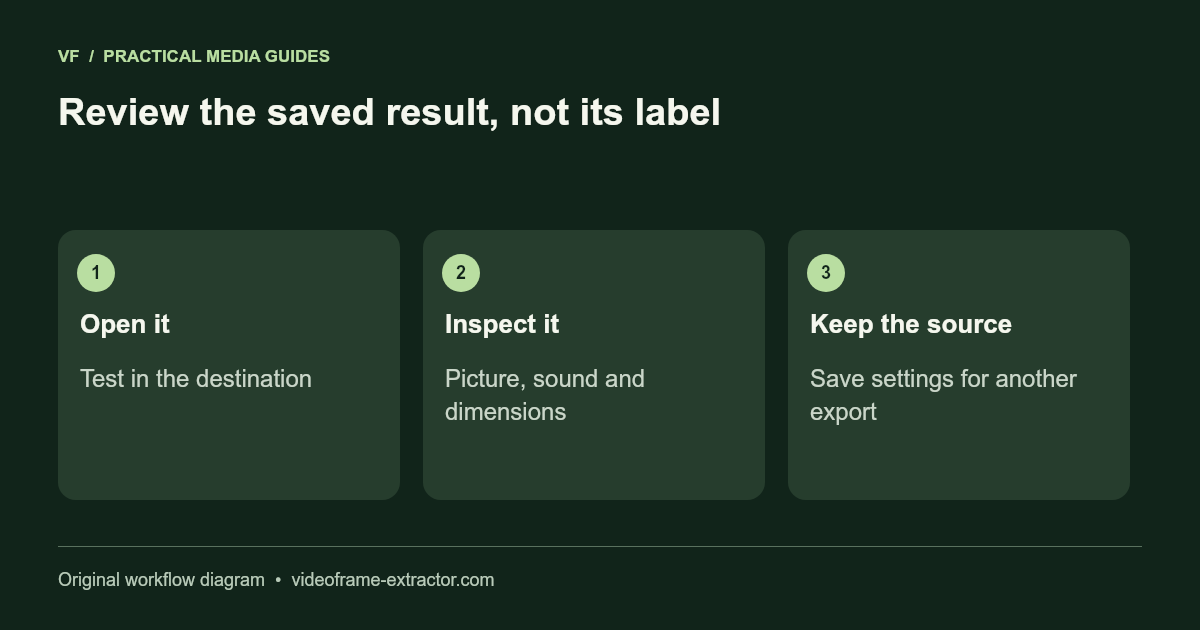
Confirm the file opens in the destination application, the dimensions and duration fit your task, audio is present when needed, and the picture or text looks correct at its actual display size. Keep original files and a record of the chosen settings. A short, inspectable result is more useful than a long unreviewed conversion.
Explore all tools or read how this release was tested. The limits are intended to make browser processing predictable; they do not promise that every device or file will work.